Notifications
This is the full history behind the bell icon in the header — every notification you’ve been sent, not just the unread ones the bell dropdown shows. Open it when you want to scroll back further than the dropdown, or narrow down to one severity.
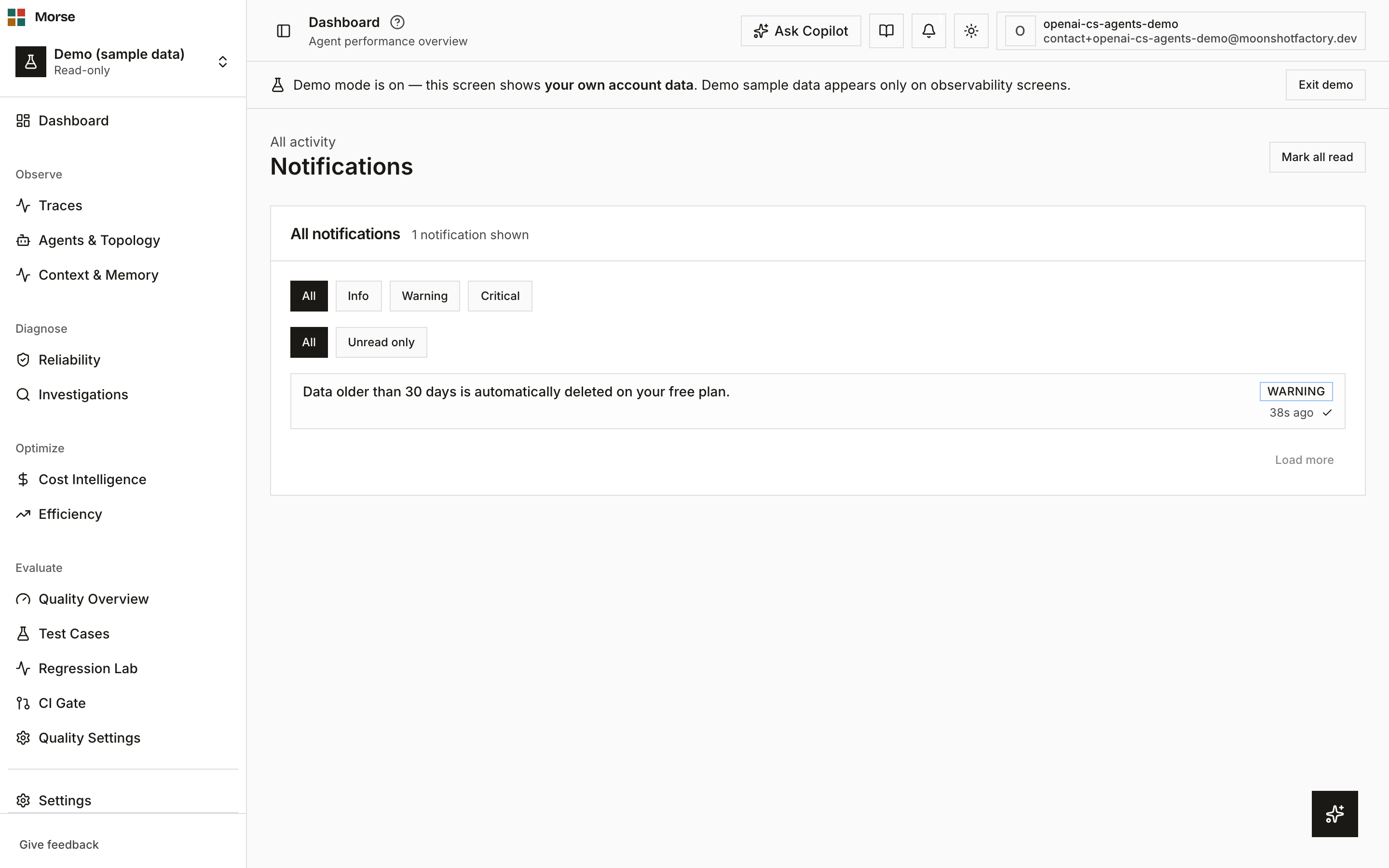
What you see
The page is a single panel titled All notifications, with a count of how many are currently shown.
Filters
Two independent filter rows sit above the list, and can be combined:
- Severity — All / Info / Warning / Critical.
- Read state — All / Unread only.
Active filters show as small badges under the filter rows.
Results
Each row shows the notification’s title (linked to the relevant screen when the notification has a deep link), a severity badge, detail text, and how long ago it fired. Unread rows are tinted; a checkmark button marks a single row read.
One kind of row is different: a consent-prompt notification renders Accept/Decline buttons in place of the title link instead of a mark-read control.
Results page with a Load more button rather than numbered pages.
How to use it
- Combine the severity and read filters to narrow the list; clear either back to All to widen it again.
- Click Mark all read to clear every unread row at once.
- Click a row’s title to jump to what it’s about, where the notification has a deep link.
- Click the checkmark on an unread row to mark just that one read.
This page is history only. Deciding which events become notifications, and where they also get delivered — Slack, PagerDuty, email, or a signed webhook, by severity — is configured on Integrations, not here.
Before you have data
Two distinct empty states, chosen deliberately rather than collapsed into one generic message:
- No notifications at all, ever: “No notifications yet. Configured alerts will land here.”
- Notifications exist, but none match the current filter: “No notifications match the <severity> / <all/unread> filter.”, with a Clear filter button.
Related
- Integrations — where alert routing (Slack, PagerDuty, email, in-app, signed webhooks) is configured per severity.
- Profile — your personal notification preferences, separate from workspace alert routing.