Evals
Quality verdict, risk drivers, and the one next action, in one screen. This is where you check whether your agents are behaving before you go looking for why.
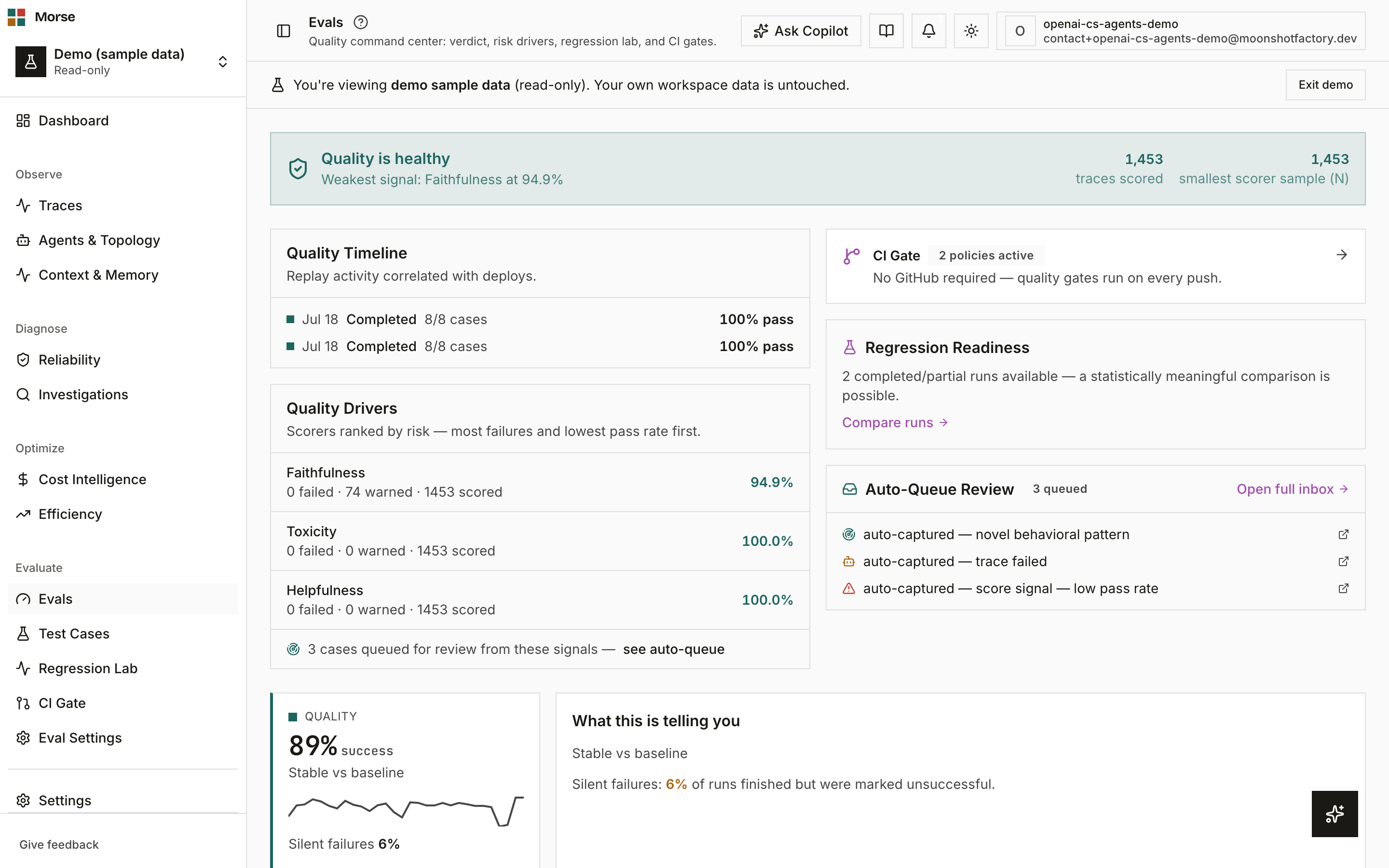
What you see
The page is composed entirely from existing hooks — no page-specific backend logic — and stays read-only: every card here links out to where you’d act.
Verdict strip
A single strip states the quality verdict — healthy, at risk, or blocked — with the weakest-signal scorer and its pass rate named inline.
Two numbers sit to the right so you never have to click through to judge confidence: total scored traces, and the smallest scorer sample size (N) behind the verdict.
Before any traces are scored, the strip says so plainly instead of guessing.
Maturity-stage banner
A dashed-border banner appears only while your account is short of full maturity, and shows exactly one next action for your current stage — never a checklist of everything at once.
The stages run in order: no traces → traces with no scores → scores with no curated cases → cases with no replay runs → runs with no comparisons → policies with thin coverage → mature.
Quality Drivers and timeline
Quality Drivers ranks scorers by risk — most failures first, ties broken by lowest pass rate — so the worst offender is always the top row.
Quality Timeline lists recent replay runs alongside deploy markers, so a quality dip can be read against what shipped.
Next-best actions
A CI Gate card always shows, naming how many policies are active (or that none exist yet) and linking straight to CI Gate.
Regression Readiness states plainly whether you have enough completed/partial runs (minimum 2) for a statistically meaningful comparison, and links to curate cases, trigger a run, or compare.
An Auto-Queue Review preview shows the first few system-sampled cases waiting for review, with a link to the full inbox on Cases.
KPIs, scorers, and budget
Four KPI cards — Scored Traces, Avg Pass Rate, Active Scorers, Auto-Sampled — sit below the fold, followed by an Active Scorers table (free vs. pro tier, each with its default threshold), live Pass Rates by Scorer bars, and a Judge Budget widget showing this month’s LLM-judge spend against your limit.
How to use it
- Read the verdict strip first — it tells you healthy/at-risk/blocked and how much data backs that call.
- Follow the maturity banner if it’s showing; it’s the single most useful next step for an account still ramping up.
- Use Quality Drivers to find which scorer is failing the most, then jump into Regression Lab or Cases from the linked action.
- Check CI Gate readiness before you assume a merge is protected — an inactive or weak gate is called out here and on CI Gate itself.
Before you have data
With no scored traces yet, the verdict strip reads “Not enough data yet” and explains that the verdict appears automatically once evals run against production traffic — no fabricated status.
Below the fold, an empty state reads “No eval scores yet — Scores will appear here automatically once traces are ingested.”
Related
- Cases — curate the datasets that feed every scorer and CI policy.
- Regression Lab — replay runs and compare two of them statistically.
- CI Gate — turn a policy into a merge-blocking check.
- Scoring — configure which scorers run and how often.